Stock Picking Section Management
Organize warehouse deliveries with custom sections, notes, and annotations directly within Odoo picking operations — improving team communication, reducing errors, and keeping delivery documentation structured and clear.
Stock Picking Section Management
Organize warehouse deliveries with custom sections, notes, and annotations directly within Odoo picking operations — improving team communication, reducing errors, and keeping delivery documentation structured and clear.
What is the Stock Picking Section Management Module?
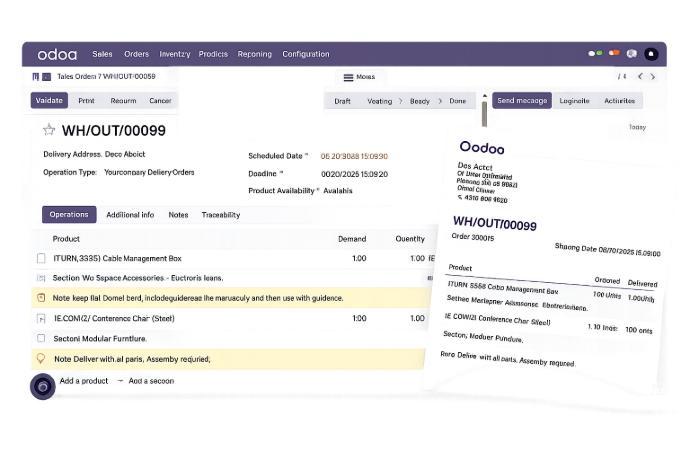
The Stock Picking Section Management module enhances Odoo's delivery and warehouse picking process by allowing teams to insert custom section headers, notes, and annotations directly within delivery lines. It brings organizational structure to complex shipments — ensuring that warehouse staff, logistics teams, and sales departments work from the same clear, well-documented delivery instructions.
- Custom Section Headers — Divide delivery lines into logical product groups with descriptive section labels for better picking clarity.
- Inline Notes & Annotations — Add special handling instructions, comments, or operational notes directly within the delivery document.
- PDF-Ready Documentation — Sections and notes appear in printed delivery slips, giving your logistics partners complete, structured documentation.
- Automatic Transfer from Sales Orders — Section and note lines defined in sales orders carry over automatically to delivery orders, eliminating redundant data entry.
- Validation Control — The system prevents delivery validation if products show an unavailable status, protecting order accuracy.
- Multiple Sections per Delivery — Organize large or complex shipments into as many sections as needed within a single delivery order.
Whether managing high-volume warehouse operations, multi-category shipments, or deliveries requiring special handling instructions, Stock Picking Section Management gives your team the structure and clarity needed to pick, pack, and ship with confidence.
What is the Stock Picking Section Management Module?
The Stock Picking Section Management module enhances Odoo's delivery and warehouse picking process by allowing teams to insert custom section headers, notes, and annotations directly within delivery lines. It brings organizational structure to complex shipments — ensuring that warehouse staff, logistics teams, and sales departments work from the same clear, well-documented delivery instructions.
- Custom Section Headers — Divide delivery lines into logical product groups with descriptive section labels for better picking clarity.
- Inline Notes & Annotations — Add special handling instructions, comments, or operational notes directly within the delivery document.
- PDF-Ready Documentation — Sections and notes appear in printed delivery slips, giving your logistics partners complete, structured documentation.
- Automatic Transfer from Sales Orders — Section and note lines defined in sales orders carry over automatically to delivery orders, eliminating redundant data entry.
- Validation Control — The system prevents delivery validation if products show an unavailable status, protecting order accuracy.
- Multiple Sections per Delivery — Organize large or complex shipments into as many sections as needed within a single delivery order.
Whether managing high-volume warehouse operations, multi-category shipments, or deliveries requiring special handling instructions, Stock Picking Section Management gives your team the structure and clarity needed to pick, pack, and ship with confidence.
Why Businesses Need Stock Picking Section Management
Unorganized delivery orders create confusion on the warehouse floor. Structure your picking operations with sections and notes — directly inside Odoo.
Common Challenges
No Grouping in Delivery Lines
All delivery line items appear as a flat list with no grouping, making it difficult to organize mixed-category shipments on the warehouse floor.
Missing Instructions on Delivery Slips
Warehouse teams have no way to include handling notes or special instructions within the delivery document — leading to miscommunication and errors.
Redundant Data Entry
Section headers and notes added to sales orders must be manually re-entered in delivery orders, wasting time and introducing inconsistencies.
Validation Gaps
Deliveries can be validated even when products are unavailable, leading to incomplete shipments and downstream fulfillment problems.
How This Module Solves It
Custom Section Headers in Deliveries
Insert named section dividers directly within delivery lines to group products logically and simplify picking operations for your warehouse team.
Inline Notes on Delivery Slips
Add handling instructions and operational notes within the delivery document — visible both on screen and in the printed PDF delivery slip.
Automatic Section Transfer
Sections and notes from sales orders automatically carry over to delivery orders — eliminating duplicate effort and maintaining document consistency.
Smart Validation Control
Built-in validation blocks delivery confirmation when products show unavailable status — preventing incomplete shipments from leaving the warehouse.
Why Businesses Need Stock Picking Section Management
Unorganized delivery orders create confusion on the warehouse floor. Structure your picking operations with sections and notes — directly inside Odoo.
Common Challenges
No Grouping in Delivery Lines
All delivery line items appear as a flat list with no grouping, making it difficult to organize mixed-category shipments on the warehouse floor.
Missing Instructions on Delivery Slips
Warehouse teams have no way to include handling notes or special instructions within the delivery document — leading to miscommunication and errors.
Redundant Data Entry
Section headers and notes added to sales orders must be manually re-entered in delivery orders, wasting time and introducing inconsistencies.
Validation Gaps
Deliveries can be validated even when products are unavailable, leading to incomplete shipments and downstream fulfillment problems.
How This Module Solves It
Custom Section Headers in Deliveries
Insert named section dividers directly within delivery lines to group products logically and simplify picking operations for your warehouse team.
Inline Notes on Delivery Slips
Add handling instructions and operational notes within the delivery document — visible both on screen and in the printed PDF delivery slip.
Automatic Section Transfer
Sections and notes from sales orders automatically carry over to delivery orders — eliminating duplicate effort and maintaining document consistency.
Smart Validation Control
Built-in validation blocks delivery confirmation when products show unavailable status — preventing incomplete shipments from leaving the warehouse.
Core Features of Stock Picking Section Management
Everything you need to bring organization, clarity, and control to your Odoo delivery operations
Add Section and Add Note in Delivery Order Lines
Insert custom section headers and note lines directly within delivery order lines to organize product groups, add special handling instructions, and improve warehouse picking clarity.
Edit and Delete Section and Note Lines
Modify or remove section headers and note lines before delivery validation — giving warehouse and logistics teams full flexibility to keep delivery documentation accurate right up to dispatch.
Multiple Sections and Notes Supported in one Delivery
Add as many section headers and notes as needed within a single delivery order — enabling clear, structured organization of complex, multi-category shipments from a single document.
Sections and Notes Visible in PDF Delivery Slips
Section headers and note lines are fully printed in PDF delivery slips — ensuring that warehouse teams, logistics partners, and recipients all work from the same structured, annotated delivery documentation.
Core Features of Stock Picking Section Management
Everything you need to bring organization, clarity, and control to your Odoo delivery operations
Add Section and Add Note in Delivery Order Lines
Insert custom section headers and note lines directly within delivery order lines to organize product groups, add special handling instructions, and improve warehouse picking clarity.
Edit and Delete Section and Note Lines
Modify or remove section headers and note lines before delivery validation — giving warehouse and logistics teams full flexibility to keep delivery documentation accurate right up to dispatch.
Multiple Sections and Notes Supported in one Delivery
Add as many section headers and notes as needed within a single delivery order — enabling clear, structured organization of complex, multi-category shipments from a single document.
Sections and Notes Visible in PDF Delivery Slips
Section headers and note lines are fully printed in PDF delivery slips — ensuring that warehouse teams, logistics partners, and recipients all work from the same structured, annotated delivery documentation.
How to Use Stock Picking Section Management
Follow these steps to organize your Odoo delivery operations with sections and notes
Install the Module
Install Stock Picking Section Management from the Odoo Apps menu in your instance or purchase it directly from the Odoo App Store.
Open a Sales Order or Delivery
Navigate to a Sales Order or directly to an existing Delivery Order in Odoo's Inventory module where you want to add sections.
Add a Section Header
In the order lines, use the "Add Section" option to insert a custom section header that groups the product lines below it.
Add Notes
Use the "Add Note" option to insert handling instructions, special comments, or operational notes at any point within the delivery lines.
Add Multiple Sections
Create as many section headers and note lines as needed to fully organize complex, multi-category deliveries with clear structure.
Edit or Delete as Needed
Modify section labels or remove note lines before validation to keep your delivery documentation accurate up to dispatch.
Transfer from Sales to Delivery
When confirming a sales order, section and note lines automatically copy to the generated delivery order — no manual re-entry required.
Print & Validate
Print the delivery slip to see sections and notes in the PDF, then validate the delivery — the system will block validation if any products are unavailable.
How to Use Stock Picking Section Management
Follow these steps to organize your Odoo delivery operations with sections and notes
Install the Module
Install Stock Picking Section Management from the Odoo Apps menu in your instance or purchase it directly from the Odoo App Store.
Open a Sales Order or Delivery
Navigate to a Sales Order or directly to an existing Delivery Order in Odoo's Inventory module where you want to add sections.
Add a Section Header
In the order lines, use the "Add Section" option to insert a custom section header that groups the product lines below it.
Add Notes
Use the "Add Note" option to insert handling instructions, special comments, or operational notes at any point within the delivery lines.
Add Multiple Sections
Create as many section headers and note lines as needed to fully organize complex, multi-category deliveries with clear structure.
Edit or Delete as Needed
Modify section labels or remove note lines before validation to keep your delivery documentation accurate up to dispatch.
Transfer from Sales to Delivery
When confirming a sales order, section and note lines automatically copy to the generated delivery order — no manual re-entry required.
Print & Validate
Print the delivery slip to see sections and notes in the PDF, then validate the delivery — the system will block validation if any products are unavailable.
Versions & Documentation
Choose your Odoo version and explore interactive documentation
Versions & Documentation
Choose your Odoo version and explore interactive documentation
Frequently Asked Questions
Find answers to common questions about Stock Picking Section Management
Which Odoo versions are supported?
Does this module work with standard Odoo delivery orders?
Do sections and notes appear in printed delivery slips?
Do I need to re-enter sections when creating a delivery from a sales order?
What happens if a product is unavailable during delivery validation?
Frequently Asked Questions
Find answers to common questions about Stock Picking Section Management